
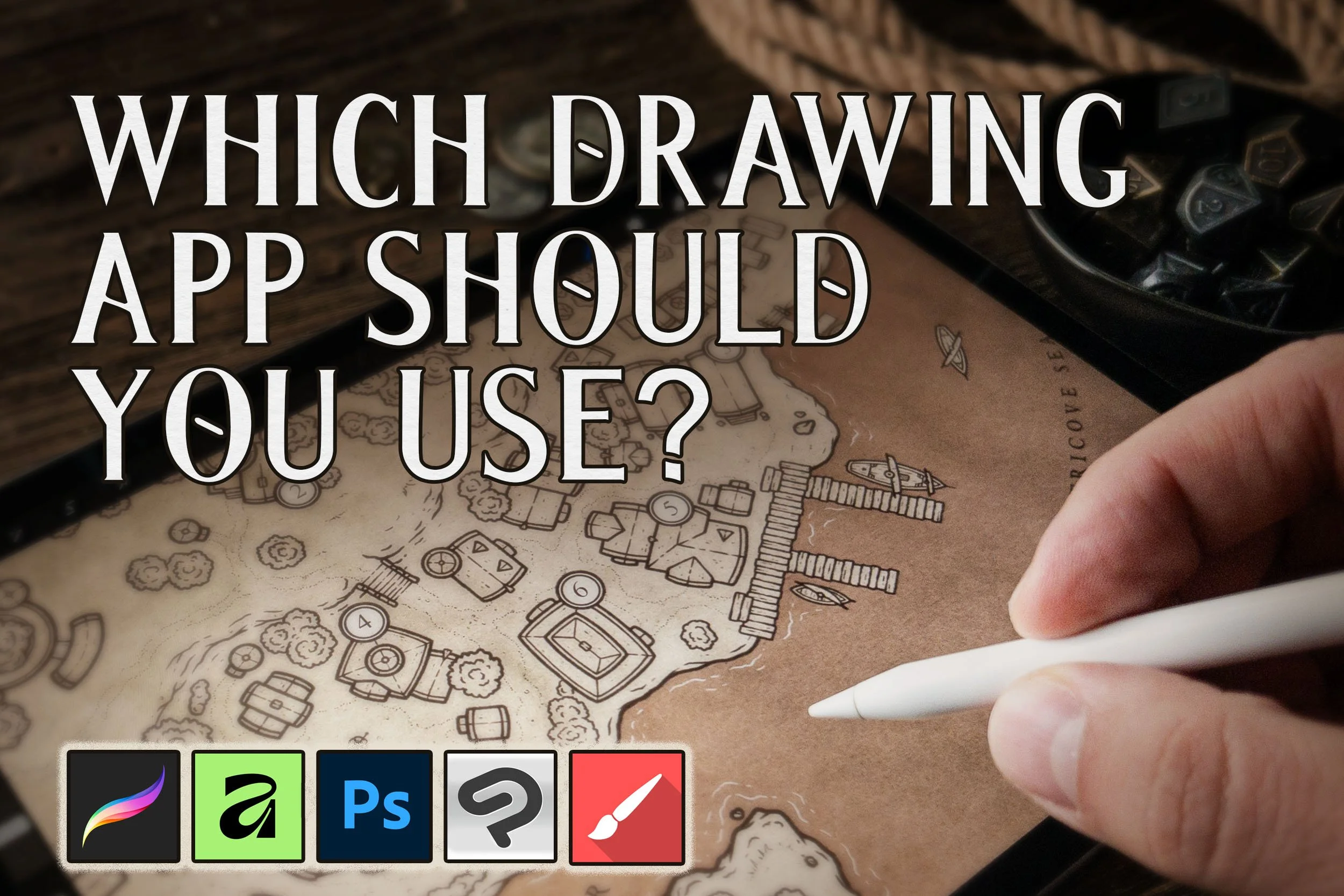
This is one of the most common questions I get, and with the ever-growing number of drawing apps out there, choosing one can feel overwhelming if you’re new to digital art or just getting started with my Map Builders.
The truth is, there isn’t one “best” drawing app for everyone. I definitely have my personal preferences, but a lot depends on what hardware you’re using. Not every app works on iPad, Android, Mac, and PC. And if you’re on Linux…man, who knows. *wink*
I’ve tried a lot of drawing apps over the years, but I’ve narrowed this guide down to the ones I think are the best options for most people. I’m also factoring in popularity because there may be some great little drawing app out there that twelve people absolutely love, but I also have to consider how many people actually use an app when deciding which ones I can reasonably support with Map Effects products.
So, rather than overwhelm you with every possible option, these are the drawing apps I recommend starting with.
Quick Guide for Your Device
Choose the device you’ll be mapping on to see where I recommend starting. Keep scrolling for a closer look at each app.
A quick note on pricing: App pricing and availability can change, so always check the developer's website for current pricing and supported devices.
Procreate
Works on: Ipad
Pricing: One-time purchase
Why it May Be Right for You
If you have an iPad, Procreate is one of the easiest and most affordable ways to get started. It’s approachable for beginners, powerful enough for professional illustration, and one of the most popular drawing apps among Map Effects users. I personally create almost all of my maps in Procreate, including the original illustrations used to build many of my Map Builder brushes and assets.
Josh’s Unbridled Opinion…
If you’re on an iPad, I think you should probably just use Procreate. I’ve used it for nearly a decade, and for actually sitting down and drawing, it’s still my favorite app. The interface stays out of your way, it’s easy to learn, and I think it has one of the best brush engines available for creating brushes that convincingly mimic traditional drawing and painting media.
Its biggest limitation for mapmaking is really an iPad limitation. Large canvases can restrict how many layers you’re allowed to use, and your document size is actually based on the iPad you’re using. That can become annoying on a detailed map, especially because every text block also takes up its own layer. You can work around that by merging layers, but honestly, most of the time I finish my drawing and shading in Procreate, and then move it into Affinity or Photoshop for labeling and texturing.
That also solves another Procreate annoyance, because there still isn’t a straightforward way to curve text along a path short of repositioning each letter by hand. For map labels wrapping around coastlines, mountains, or other features, I prefer finishing the typography elsewhere.
Affinity
Compatible with: PC, Mac
Pricing: Free
Why it May Be Right for You
If you're starting from scratch and you're not on an iPad, this is the one I'd look at first. Affinity gives you a powerful drawing and design environment without another software purchase or subscription, making it an especially good companion for the free Map Effects Apprentice Kit. It also shares a lot in common with Photoshop, so if you have experience with Photoshop, much of the interface and workflow should feel familiar.
Josh’s Unbridled Opinion…
Affinity is a really solid option if you want much of the functionality of Photoshop without paying the monthly Adobe subscription. And now that Affinity is free, it’s become very easy for me to recommend. Even when the old Affinity Photo 2 was a one-time purchase, I thought it was the better choice for most people. Now that cost isn’t really a barrier at all, if you’re on a Mac or PC and don’t already have a drawing app you love, I’d start here.
I still don’t think its brush customization is as good as Procreate or Photoshop, particularly if you want to get deep into creating and tweaking your own brushes. But for actually using Map Effects brushes and creating maps, that probably isn’t going to matter to most people.
I know several professional illustrators and designers who moved their workflows over to Affinity after getting frustrated with the latest Adobe fiasco, and they haven’t looked back.
Photoshop
Compatible with PC, Mac, Ipad, Android
Pricing: Subscription
Why it May Be Right for You
Photoshop has long been an industry standard for digital artists and graphic designers for a reason. It’s extremely powerful, has a massive ecosystem of brushes and resources, and Map Effects products generally work very naturally with it. If you already use Photoshop as part of your creative workflow, there’s probably little reason to switch to something else just for mapmaking.
Josh’s Unbridled Opinion…
For me, Photoshop is hard to justify unless you’re using it professionally. It’s expensive, especially compared with some of the other options on this list, and it can be pretty overwhelming if you’re completely new to digital art. Photoshop can do so much that it’s packed with tools and settings you may never touch. That flexibility is fantastic when you need it, but if your main goal is simply to sit down and draw a map, it primarily is overwhelming, especially if you’re new to digital art.
That said, I still use Photoshop regularly. It’s especially useful when I’m working with large files, lots of layers, typography, textures, or creating mockups and final presentation graphics. It’s also one of my favorite places to finish a map that I originally drew in Procreate.
So if you already have Photoshop and know how to use it, keep using it. But if you’re brand new to digital art and just need an app for making maps, I probably wouldn’t start paying for an Adobe subscription just for that.
Clip Studio Paint
Compatible with PC, Mac, Ipad, Android
Pricing: Subscription or One-time purchase
Why it May Be Right for You
Clip Studio Paint is an especially strong option for illustrators, comic artists. It offers much of what you’d expect from professional drawing software while also being available on tablets and mobile devices. If you already use Clip Studio Paint for your artwork, it can be a great place to build your maps as well.
Josh’s Unbridled Opinion…
I’ll admit up front that I don’t have nearly as much personal experience with Clip Studio Paint as I do the other apps in this list. But I know several illustrators who use it regularly and absolutely love it. Personally, I find the interface a little confusing, and I’m not a huge fan of how the brush settings are organized. Honestly, it feels like the brush system was designed by a coder rather than an artist. On the plus side, it handles Photoshop .ABR brushes well, which makes it a natural fit for many Map Effects products. It also gives you a lot of professional-level functionality without necessarily committing to the cost of Photoshop.
I used to recommend Clip Studio Paint more often as a Photoshop alternative, but with Affinity now available for free on Mac and PC, Affinity has become my easier recommendation for most people starting from scratch on a computer. Where Clip Studio Paint still makes a lot of sense to me is if you’re using an Android tablet. In that case, it is definitely and option to consider.
Infinite Painter
Compatible with Ipad, Android
Pricing: One-time purchase
Why it May Be Right For You
Infinite Painter is a solid option if you prefer working on an Android tablet, where some of the other apps on this list aren’t available. It has a strong brush engine, an approachable drawing interface, and plenty of tools for creating detailed maps.
Josh’s Unbridled Opinion…
Infinite Painter is a good option if you’re on an Android tablet and it actually has some cool built-in features that I wish Procreate had.
My frustrations with Infinite Painter mostly come from behind the scenes. I have to build and test hundreds of brushes for Map Effects, and I’ve run into some quirks and inconsistencies in its brush-building tools that can drive me a little crazy. From the perspective of someone simply importing Map Effects brushes and drawing with them, though, most of that probably won’t matter to you.
So, my recommendation is pretty simple… if you’re on an iPad, I’d choose Procreate. If you’re on Android, I’d look at Infinite Painter or Clip Studio Paint. Between those two, Infinite Painter is especially appealing if you want something simpler and would rather make a one-time purchase than add another subscription
What about GIMP and Krita?
Josh’s Unbridled Opinion…
There was a time when GIMP and Krita were at least part of the conversation. I know plenty of people who started their digital art journey with one of these apps, and for that reason they offered a lot of value. But it’s no longer 2010, and in my opinion, you have better options.
I’ll be honest… I’ve never been particularly impressed with either app for the kind of work I do, despite trying several times over the years to like them. And now that Affinity gives you a powerful professional-quality option for free, I have a hard time recommending GIMP or Krita to someone who is simply looking for a good drawing app to start making maps.
There are absolutely people who prefer them, particularly those who value open-source software, and I respect that. But if you don’t already have a reason for choosing GIMP or Krita, I think there are better places to start.
Ready to Make Your First Map?
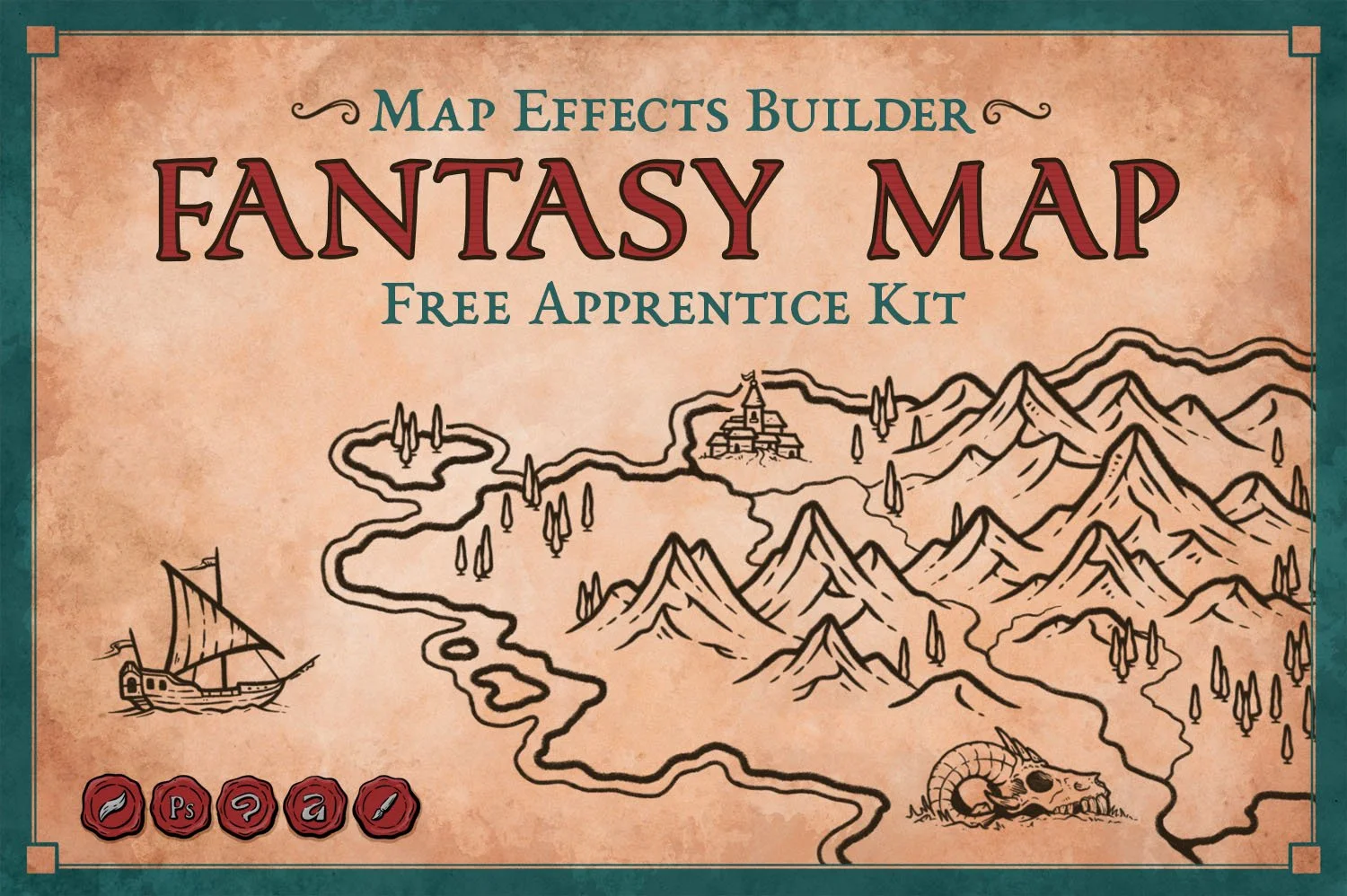
Everything you need to begin your first map, including 10 hand-drawn map features and the Starter Field Guide to lead you through each step.
Explore map making tutorials, tips, and worldbuilding guides to help you create richer, more immersive fantasy worlds.
